
How to score a game
PlayHQ electronic scoring guide for iPads
This guide explains how to score a game using PlayHQ on an iPad. It covers the lineup, scoring, fouls, coaches, the clock and finalising a game.
No previous experience is required. Scorers must be at least 14 years old, and your Team Manager will provide the scoring roster.
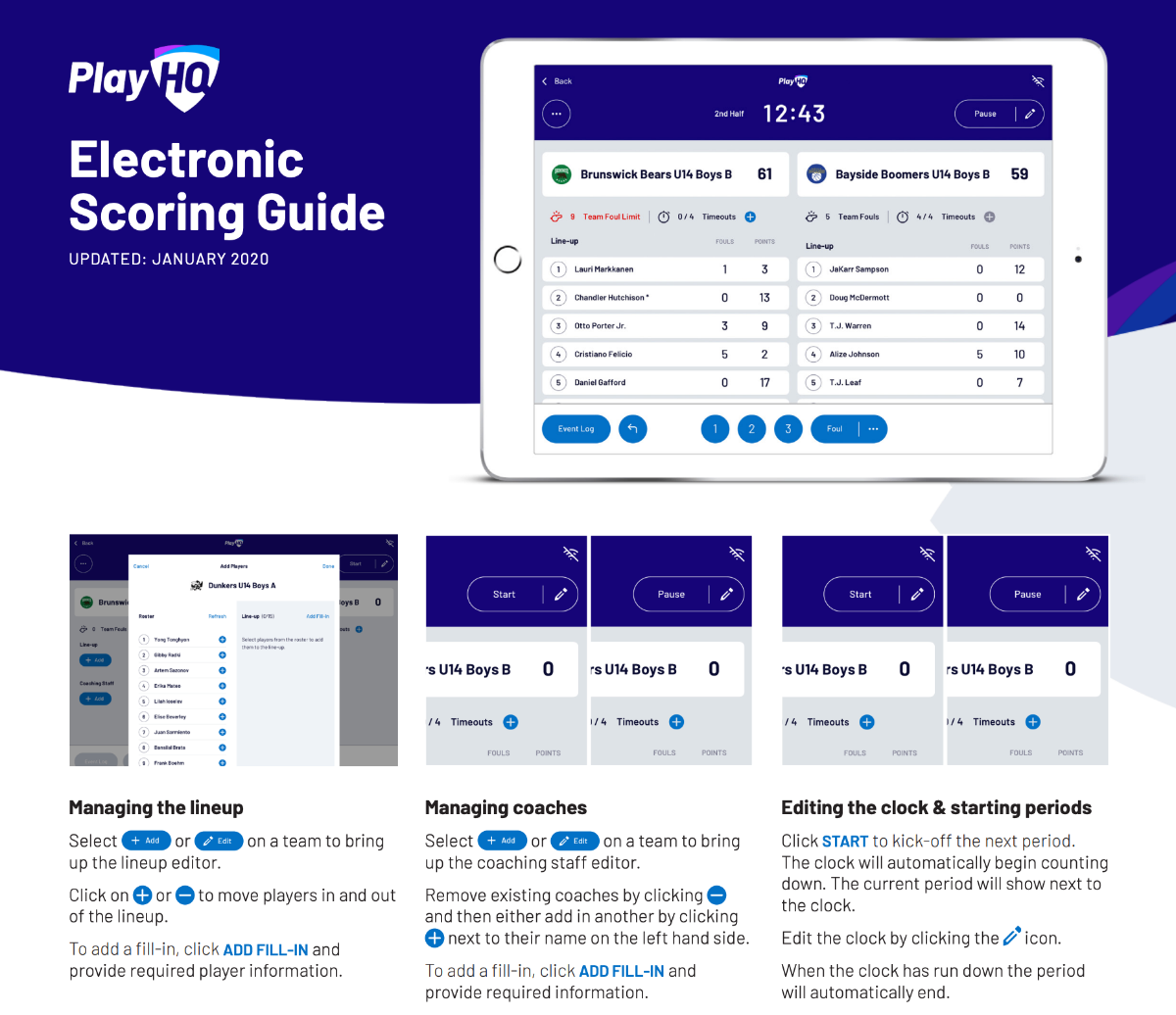
Managing the lineup
Set up and adjust which players are on the court for each team.
Open the lineup
Select Add or Edit on a team to bring up the lineup.
Move players in and out
Click on a player, then use the arrows to move players in and out of the lineup for the game.
Add a fill-in player
To add a fill-in, click ADD FILL-IN and provide the required player details.
Adding scores and fouls
Scores and fouls can be added in either order that suits you.
Option 1: start with the player
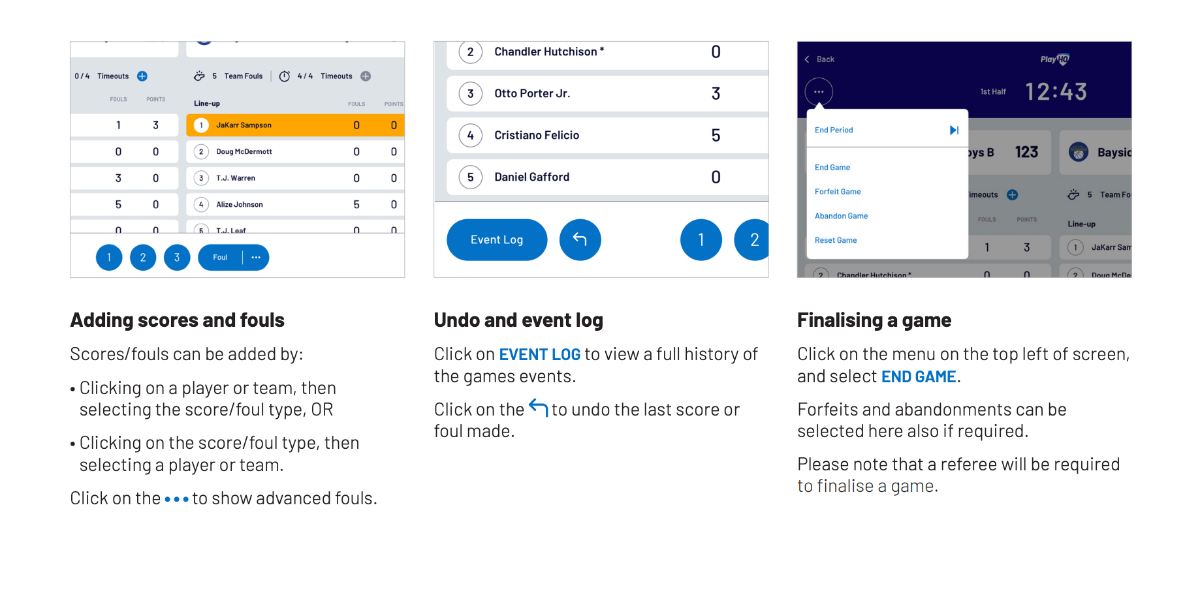
Click on a player or team, then select the score or foul type.
Option 2: start with the action
Click on the score or foul type, then select a player or team.
Advanced options
Click on the player to show the advanced options for that entry.
Managing coaches
Keep the coaching staff list up to date for each team.
Open the coaching staff
Select Add or Edit on a team to bring up the coaching staff.
Remove or add a coach
Remove an existing coach by clicking the remove icon, then add another by clicking the add icon next to their name on the left-hand list.
Add a fill-in coach
To add a fill-in, click ADD FILL-IN and provide the required details.
Undo and event log
Review what has happened in the game and correct mistakes.
View the event log
Click on EVENT LOG to view a full history of the game.
Undo the last entry
Click on the undo icon to undo the last score or foul.
Editing the clock & starting periods
Control the game clock and move through each period.
Start the next period
Click START to kick off the next period. The clock will automatically begin counting down. The current period will show next to the clock.
Edit the clock
Edit the clock by clicking on the time.
End of period
When the clock has run down, the period will automatically end.
Finalising a game
Finish the game so the result is recorded correctly.
End the game
Click on the menu on the top left of the screen, and select END.
Forfeits and abandonments
Forfeits and abandonments can be selected here also.
Referee confirmation
Please note that a referee will be required to finalise a game.
Need help?
For scoring duties and rosters, contact your Team Manager.
For club questions, contact Melbourne Wolves.
New to scoring?
No experience needed. If you are unsure on game day, ask your Team Manager or another parent courtside.
View the Parent Checklist